
Prepare each new employee’s technology before their first day so equipment and access are ready to use. For IT onboarding for new employees in Brea, tailor the setup to the person’s role, then test devices, accounts, and communication tools before they arrive.
A smooth first day takes preparation. Handle the details early so a new hire can focus on meeting the team and learning the work, rather than waiting for logins or missing equipment.
Use this practical plan to organize welcome communications, prepare devices, set up the workspace, and provide secure digital access. You’ll also learn how to make onboarding easier to manage as your team grows.
Key Takeaways
- Reach out as soon as an offer is accepted, then send first-day logistics a week before the start date.
- Prepare and test the employee’s devices before day one, based on the needs of their role.
- Plan the workspace, communication tools, and account access so the new hire can get started smoothly.
- Use managed IT and cybersecurity support to make onboarding more organized and protect business systems.
Pre-arrival paperwork and welcome communications
Begin IT onboarding for new employees in Brea as soon as an offer is accepted. Use the time before day one to prepare privacy paperwork and give the new hire clear first-day details.
Account for Privacy and Security Rules
- Map the California privacy and security obligations connected to the personal information your business handles. Applicability depends on the data and business context, so don’t treat one checklist as a complete legal answer. Before IT onboarding, have the new hire review and sign your data privacy agreement. Explain how it helps keep confidential company information private. Then plan cybersecurity and data privacy training, including safe file storage, clean desk habits, and locking computers and desks. Require multi-factor authentication on accounts used for critical business processes or data. Build these steps into the paperwork and account setup, not as optional reminders after access is granted.
Set the Onboarding Timeline
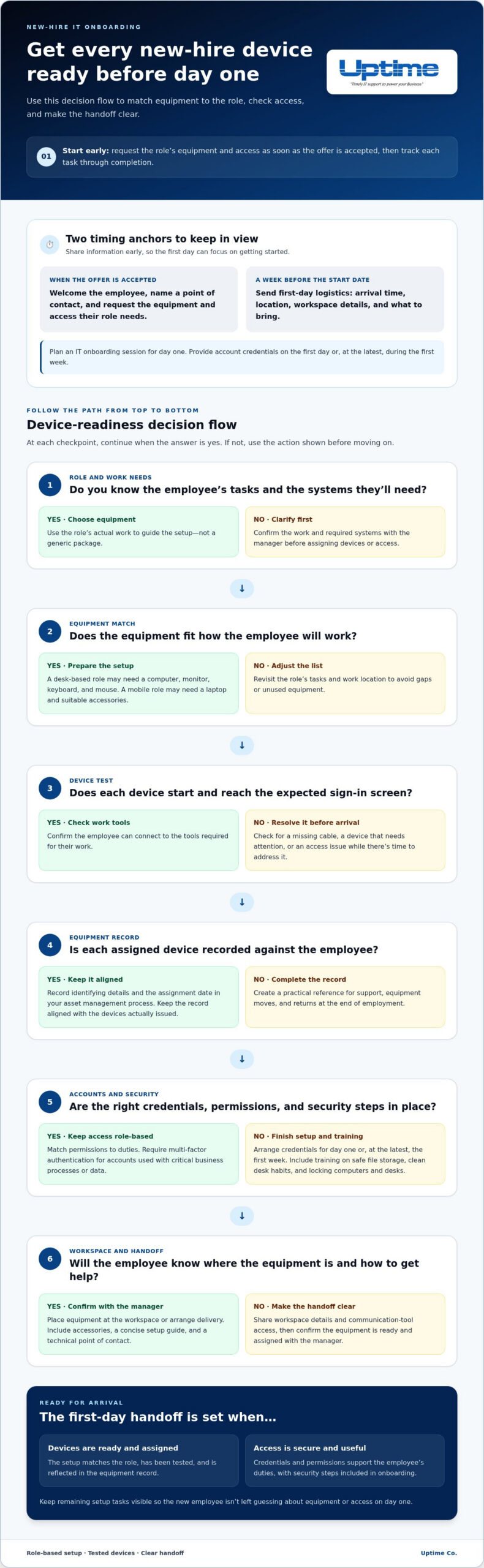
- Contact the new employee immediately after they accept the offer. Use that first message to welcome them, share a point of contact, and request the equipment and access their role needs. Send first-day logistics a week before the start date. Include the arrival time, location, workspace details, and what they should bring. If useful, arrange an informal virtual meet-and-greet with the team before they start, and assign a buddy or mentor before the first day. Schedule an IT onboarding session for day one, then share the onboarding plan with the employee. Provide account credentials on the first day or, at the latest, during the first week. The timeline depends on role-specific access and paperwork, so begin early and track each task to completion.
Preparing devices before the start date
- Match equipment to the role. List the work the employee will do and the systems they need. A desk-based role may require a computer, monitor, keyboard, and mouse. A mobile role may need a laptop and accessories suited to working away from the office. Use the role’s actual tasks to guide choices, rather than issuing a generic setup that leaves gaps or adds unused equipment.
- Prepare each device before the first day. Set up the equipment in advance, then check that it starts correctly and reaches the expected sign-in screen. Confirm the employee can connect to the tools required for their work. A basic test can reveal a missing cable, a device that needs attention, or an access issue while there’s still time to resolve it.
- Keep a clear equipment record. Associate each employee with the devices assigned to them. Record identifying details and the assignment date in your asset management process. This gives your team a practical reference when equipment needs support, moves between employees, or returns at the end of employment. Keep the record aligned with the devices actually issued.
- Make the handoff easy. Place the prepared equipment at the employee’s workspace, or organize delivery for their work location. Include the accessories they’ll use and a concise setup guide with the right point of contact for technical questions. For a consistent process, use a repeatable device-readiness workflow that tracks preparation and assignment.
- Close the loop before arrival. Confirm the equipment is ready and assigned, then coordinate the handoff with the manager. Keep any remaining setup tasks visible, so the new employee isn’t left guessing about their device on day one.
Workspace, equipment, and digital access setup
Prepare role-specific equipment, workspace details, and digital access before the employee’s first day. Follow this sequence to make the handoff clear and secure.
Prepare First-Day Information and Equipment
- Match the setup to the role. Identify the tools, equipment, and access the employee needs for their work. A desk-based role may need a computer, monitor, keyboard, and workspace; a role involving off-site work may require portable equipment. The right setup depends on the employee’s role and industry, so avoid issuing the same package automatically.
- Set up the workspace and communication tools. Make the employee’s workspace ready, and provide access to the communication platforms they’ll use on day one. Share practical details, such as where to sit and how to join team meetings. Request equipment and access as soon as you receive notice that the offer was accepted, then track each item until it’s ready.
- Prepare account credentials. Arrange for the employee to receive credentials on their first day or, at the latest, during their first week. Match permissions to their duties so access supports the job without opening unrelated systems.
Include Cybersecurity Training and Access Controls
- Schedule security learning and protect critical accounts. Include cybersecurity and data privacy training in onboarding, then continue with periodic sessions. Cover practical habits such as safe storage of physical files and locking computers and desks. Require multi-factor authentication for accounts used with critical business processes or data. Build these controls into the employee’s access setup. For help strengthening this process, explore cybersecurity support for your business.
Uptime: Managed IT Services
Uptime Co. helps teams coordinate the technology behind new-hire onboarding. Its Managed IT Services can help when device preparation, account access, and employee setup become difficult to manage consistently. Cybersecurity Solutions support secure access practices, while Cloud Services and Network Infrastructure support the systems employees rely on.
A clear onboarding process connects these pieces: role-based access, ready-to-use devices, and secure business systems. Uptime Co. can help your organization manage that IT foundation as hiring needs evolve. If you’re ready to discuss your onboarding setup, contact Uptime Co..
Build a Stronger First-Day Experience
Make onboarding a repeatable part of business growth. As roles, systems, and work locations change, review your setup so each new hire receives access suited to their responsibilities without unnecessary complexity. A clear process gives managers and IT a shared path to follow.
For IT onboarding for new employees in Brea, Uptime Co. connects the process with its Managed IT Services, Cybersecurity Solutions, and Cloud Services. These services help your team plan the technology behind employee access and business systems as needs evolve.
Choose the next step that fits your team. Contact Uptime Co. to discuss onboarding support, and keep building a confident start for every new employee.
Frequently Asked Questions
What does IT onboarding for new employees in Brea, California typically include?
Coordinate the employee’s role, manager, work location, and required business systems. Give the person responsible for setup a clear list of approved applications and access needs. A finance employee and a field employee, for example, may need different tools. Keep the manager involved so permissions match actual duties, and record who approved access changes.
What IT onboarding services are available for Brea businesses?
Brea businesses can turn to Uptime Co. for Managed IT Services, Cybersecurity Solutions, Cloud Services, and Network Infrastructure. These services support the technology employees rely on, from business systems to secure connections. For example, a company moving several departments to shared cloud tools may need cloud and network support as part of its broader IT setup.
What are the steps for setting up a new employee’s accounts, devices, and software?
Start with a manager-approved list of applications and permissions tied to the employee’s duties. Create accounts according to your organization’s naming and access conventions, then install or provide the required software. Test a typical work task, such as opening a shared project file, to identify access gaps. Record assigned equipment and account ownership in your internal tracking process.
How do managed IT providers compare for onboarding employees in Brea?
Managed IT providers vary in the technology they support and how their services fit a business’s existing environment. Uptime Co. serves businesses in Brea and Orange County with Managed IT Services, Cybersecurity Solutions, Cloud Services, and Network Infrastructure. For local businesses, this can connect employee setup with the systems and security measures already supporting daily operations.
What California privacy and security rules affect employee IT onboarding?
Relevant obligations depend on the personal information a business handles and its business context. Include a signed data privacy agreement, privacy and cybersecurity training, and multi-factor authentication for accounts used with critical business processes or data in your onboarding process.