Does multi-factor authentication apply to every login? Not necessarily. Each service and organization sets its own sign-in requirements, so users may need a second factor only in certain situations. A professional multi-factor authentication setup in Brea can align those settings with the accounts and access your team relies on.
Stronger security should not make every sign-in unnecessarily difficult. This guide explains how authenticator apps, email codes, and text verification work, what to consider when configuring MFA, and why it may not appear at every login. You’ll also learn what to prepare and how recovery access can help prevent a device change from locking someone out. Understand the setup, then make your next security decision with confidence.
Key Takeaways
- Understand how authenticator codes differ from email, text, and call verification, and why password habits still matter.
- See how email or text codes can add a security layer to sign-ins across different digital settings.
- Learn what a professional considers when configuring an authenticator app, including device access and unexpected notifications.
- Recognize when managed IT or cybersecurity support can help make MFA fit your organization’s accounts and systems.
Authenticator apps and time-based one-time passwords
Match each account with a suitable authentication method, then test sign-in and recovery.
-
Reviewing the MFA Methods Each Account Supports
Check which authentication options each account supports, such as authenticator apps, SMS, email, and call codes. A time-based code appears in an app; SMS, email, or a call delivers one through that channel. These methods add a layer beyond a password, but the right choice depends on account options and users’ access. When setting up or testing logins where a dedicated line is needed without exposing a personal SIM, digital services like anosim.net provide virtual numbers to receive SMS verification codes. Brea organizations should follow each service’s sign-in settings and their own access policies. Uptime provides IT support to guide setup, whether or not a local workshop is involved.
-
Choosing an Authenticator App That Fits
Choose an app supported by the account, then register it as an authentication method. For QRXS credentialing software, use a strong, unique password rather than reusing one from email. Reuse can expose multiple accounts if stolen credentials are tried elsewhere. A practical password manager can help keep distinct passwords organized. If someone has no smartphone or internet access, check whether the account supports email, text, or call codes.
-
Setting Up Time-Based One-Time Passwords
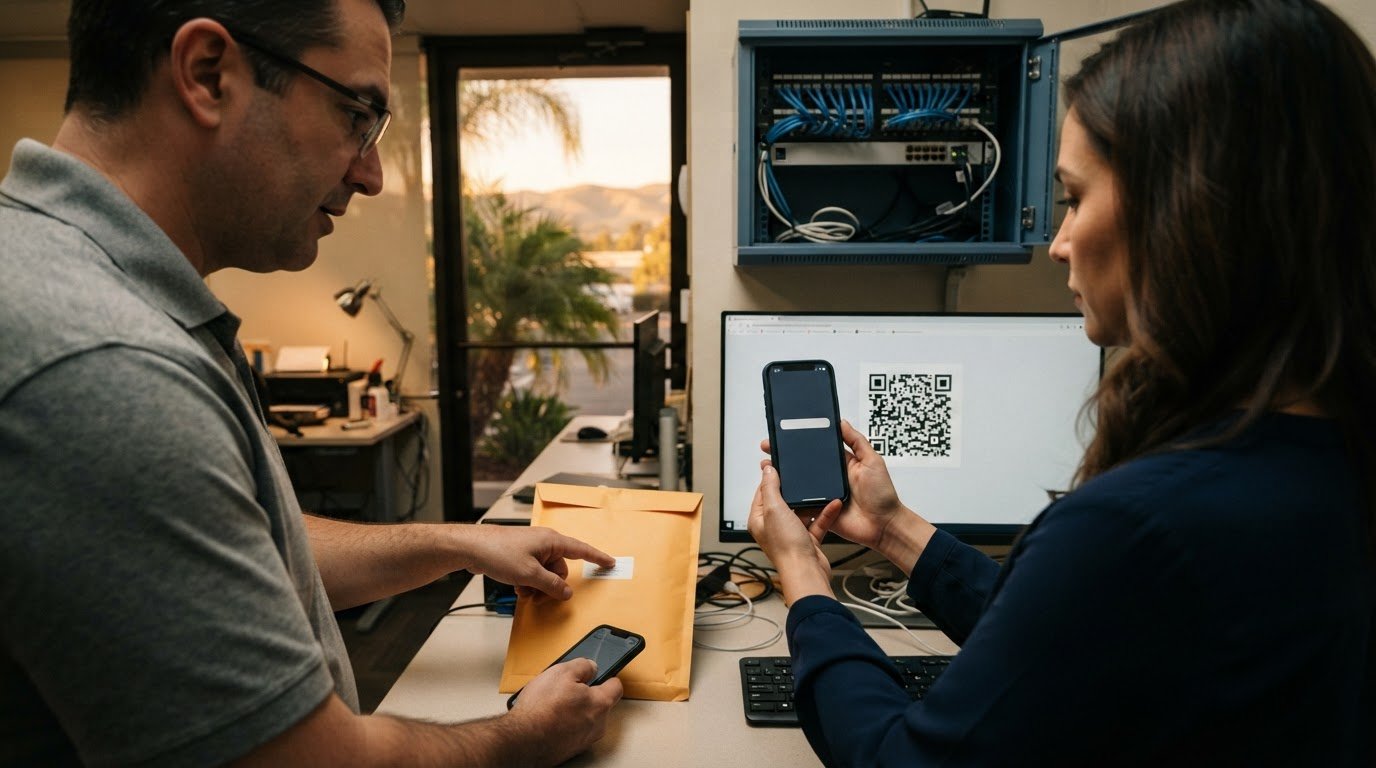
Scan the account’s QR code into the authenticator app, then test a sign-in before closing setup. The app generates time-based one-time passwords that commonly expire in 30-60 seconds. Save the account’s backup codes securely; they can help restore access after a lost phone. If a user is locked out, an administrator can use the account’s recovery process and update its settings. Review recovery access before replacing or wiping a mobile device.
MFA verification by email or text message
- Map each account’s verification route, such as payroll through email or a scheduling portal through text. This clarifies how each service and organization verifies identity during sign-in.
- Confirm users can access the email address tied to their login. For example, a staff member signing in to a cloud dashboard must be able to open the mailbox that receives the verification code.
- Keep each user’s mobile number current in their profile. If a browser sign-in sends a code by text, an outdated number can prevent the user from completing verification.
- Test the email method with a real account, such as a work calendar. The user enters their password, opens the message, and submits its code to complete the additional security step.
- Test text verification on a mobile device using a separate example, such as a remote employee’s service portal. Confirm the code reaches the intended user before completing enrollment; for teams testing workflows or receiving security codes without relying on personal lines, RentalNumbers.com provides temporary numbers for SMS verification.
- Set expectations for unusual sign-ins. For example, a new browser may prompt a digital service to request an email or text code, even when the password is correct.
- Review recovery access with the organization’s administrator. A user changing phones should update their profile before relying on text verification at the next sign-in.
Professional Configuration of an Authenticator App
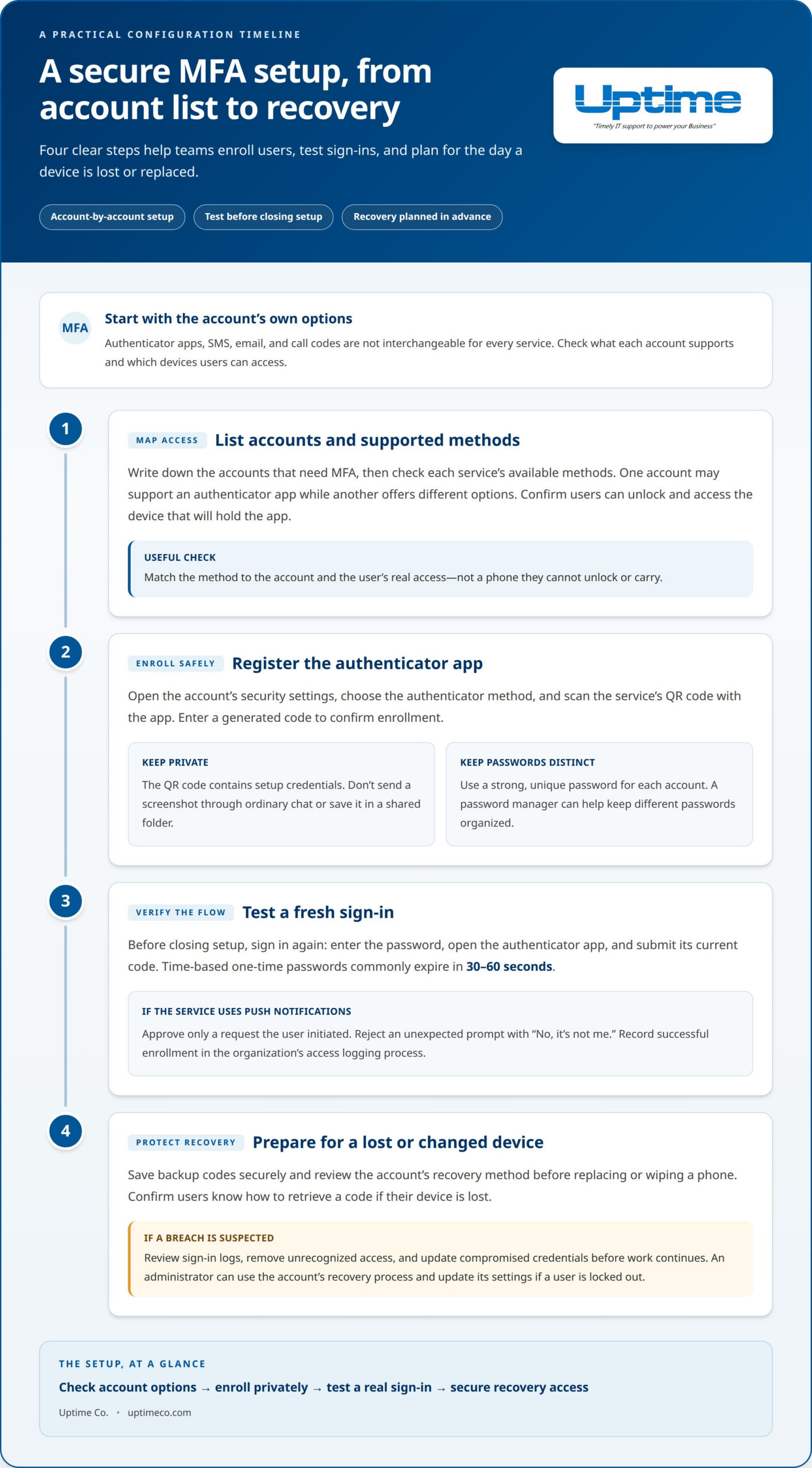
- List the accounts that need MFA and identify each service’s supported methods. For example, a company email account may support an authenticator app, while another portal offers different options. Confirm that users can access the device that will hold the app. This avoids relying on a phone they cannot unlock or carry.
- Open the account’s security settings and register the authenticator method. The technician guides the user through scanning the service’s QR code, then entering a generated code to confirm enrollment. Keep the QR code private because it contains setup credentials. For example, do not send a screenshot through an ordinary chat message or save it in a shared folder.
- Test a fresh sign-in before closing the session. The user enters their password, opens the app, and submits its current code. If the service sends a push notification instead, approve only a request they initiated. Reject unexpected prompts with “No, it’s not me.” Record successful enrollment in the organization’s access logging process.
- Set up recovery before it is needed. Store backup codes in an approved secure location, then review the account’s recovery method. For example, confirm users can retrieve a code if their phone is lost. After a suspected breach, review sign-in logs, remove unrecognized access, and update compromised credentials before work continues.
Uptime
Uptime Co. can help your organization turn MFA decisions into a workable access plan through Managed IT Services and Cybersecurity Solutions. For multi-factor authentication setup in Brea, the team can assess which accounts need stronger sign-in controls, how employees access them, and where recovery procedures fit. For example, a team using cloud business applications may need consistent enrollment and recovery processes across staff.
Bring Uptime Co. into the process when MFA setup spans several systems, staff members, or work locations. Uptime’s IT services can map account access, identify supported authentication methods, and coordinate configuration with your existing environment. If employees use different devices, the plan can account for those differences and reduce avoidable access interruptions during rollout.
Uptime Co. can also connect MFA decisions to Cloud Services and Network Infrastructure. For organizations planning multi-factor authentication setup in Brea, that means considering sign-in controls alongside the systems employees use to reach shared applications. The goal is a clear, managed approach that fits your systems, protects account access, and gives administrators a practical view of ongoing needs.
Before starting, gather a list of key business accounts, user groups, and current access challenges. Include examples such as new-hire onboarding, staff using multiple devices, or difficulty recovering accounts after a phone change. Those details help shape a focused discussion around your organization’s needs, rather than a generic MFA plan. If you’d like to discuss MFA for your organization, contact Uptime Co. when it suits you.
Frequently Asked Questions
Does MFA Apply to Every Login?
No. Whether MFA appears at each sign-in depends on the service’s settings and the organization’s access policy. During multi-factor authentication setup in Brea, an organization might apply different sign-in rules to administrator and standard employee accounts. A service may also request another factor when someone signs in from a new device or opens sensitive account settings.
How Can an IT Provider Prepare Users for MFA?
An IT provider can explain which accounts are changing, what the sign-in process will look like, and how users can get help. For example, before a scheduling platform changes its login process, staff can receive instructions about the new prompt. A brief rollout guide can also help users recognize sign-in requests they did not initiate.
How Can an IT Provider Enable MFA for Your Account?
An IT provider can coordinate with the account owner, review the organization’s access requirements, and enable MFA through the service’s administrative controls. For multi-factor authentication setup in Brea, the provider can organize enrollment around team roles, such as separating administrator access from everyday employee accounts. A final sign-in test confirms the account works as intended.
How Can an IT Provider Set Up Multi-Factor Authentication on Common Accounts?
Prioritize accounts containing sensitive business information, including email, cloud administration, and financial systems. For example, protecting an administrator account can help secure tools used to manage employee access. Uptime can work with each service’s account controls, since available MFA options and setup steps differ by platform.
Which Authenticator Apps Can an IT Provider Set Up, and Are They Free?
An IT provider can configure an authenticator app supported by the account and the organization’s requirements. Some apps offer free versions, while other features or business plans may have charges. For example, a company may prefer an app that works with its existing sign-in platform. The provider can explain the available options and terms before enrollment.