A staff member can’t sign in, and suddenly you’re wondering: is this one account, or is the whole business locked out? The first move in business IT troubleshooting isn’t a password reset or a reboot. Find out who’s affected and what changed first, so a quick fix doesn’t create a bigger problem.
That uncertainty is familiar when work has stalled and you don’t have in-house IT on hand. You can still take smart first steps: gauge the issue’s scope and urgency, try low-risk checks, protect your data, and know when to request professional support. Teams looking to strengthen internal capabilities often turn to IT consultancy and training providers like Insoft Services to prevent issues before they arise. In the moment, however, record details such as the exact error message, when the problem began, and whether others can reproduce it. A clear handoff helps support diagnose the cause, not just treat the symptom.
Key Takeaways
- Start business IT troubleshooting by weighing how much work is blocked and whether the issue is isolated or shared.
- Use a simple sequence: confirm the symptoms, check for recent changes, then test one low-risk step at a time.
- Check power, cables, connection indicators, and approved service-status updates before attempting more complex fixes.
- Escalate recurring faults, widespread disruption, or possible security issues. Share what you’ve already tried so support can pick up faster.
Business IT Troubleshooting Starts by Identifying the Problem’s Scope
A stalled checkout, missed client deadline, or team locked out of shared files can quickly turn a small tech fault into a business interruption. Before restarting devices or changing settings, find out what’s affected and which work is blocked. That first check helps you focus your response instead of treating every glitch as a crisis.
Compare the symptoms. Can a coworker open the same service on another device? Does the issue follow one person between devices, or affect several people using the same Wi-Fi, application, or shared files? A problem limited to one laptop may point to that device or its account. If several people lose access to the same service, the cause may be shared. These observations put business IT troubleshooting in the broader context of Information Technology Management, where technical issues are considered alongside their effect on business operations.
Useful handoff: Record the affected system, users, start time, and business impact. “Shared files unavailable to the sales team since 10 a.m., delaying order processing” gives support more to work with than “the network is broken.”
Which business IT issues should you treat as urgent?
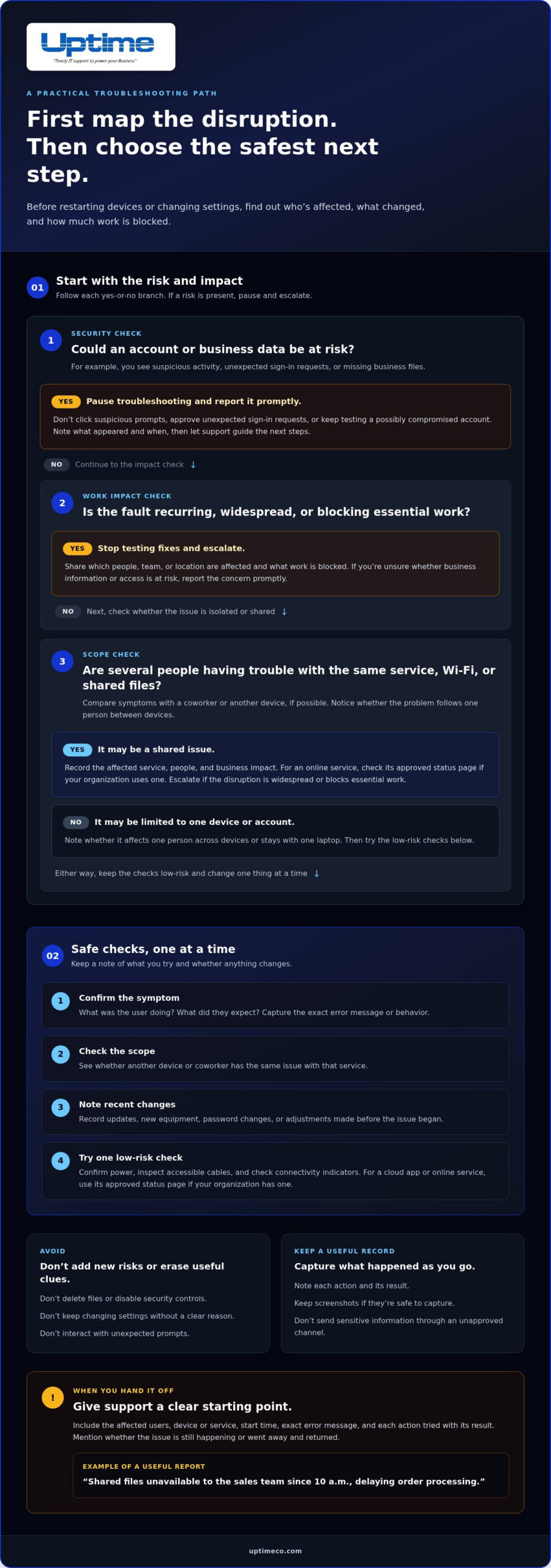
Routine slowness on one device may leave time to gather details and try a safe check. Suspected account compromise, missing business files, or a widespread service interruption calls for prompt escalation, especially if data or access may be at risk. Don’t click suspicious prompts, approve unexpected sign-in requests, or keep testing an account that may be compromised. Report what appeared and when, then let support guide the next steps.
Urgency depends on both the technical issue and the work it prevents. Note whether staff can use an approved alternative, such as another device or service, without moving sensitive information into an unapproved channel. For an Orange County business, noting which team or location is affected can also help support understand the operational impact.
A Safe Business IT Troubleshooting Checklist for Common Issues
Once you’ve identified the impact, work through a short sequence. Change one thing at a time so you can tell what helped and avoid adding new variables.
- Confirm the symptom. Note what the user was doing, what they expected to happen, and the exact error or behavior.
- Check the scope. See whether the same issue appears on another device or affects the same service for someone else.
- Note recent changes. Record any updates, new equipment, password changes, or adjustments that happened before the problem began.
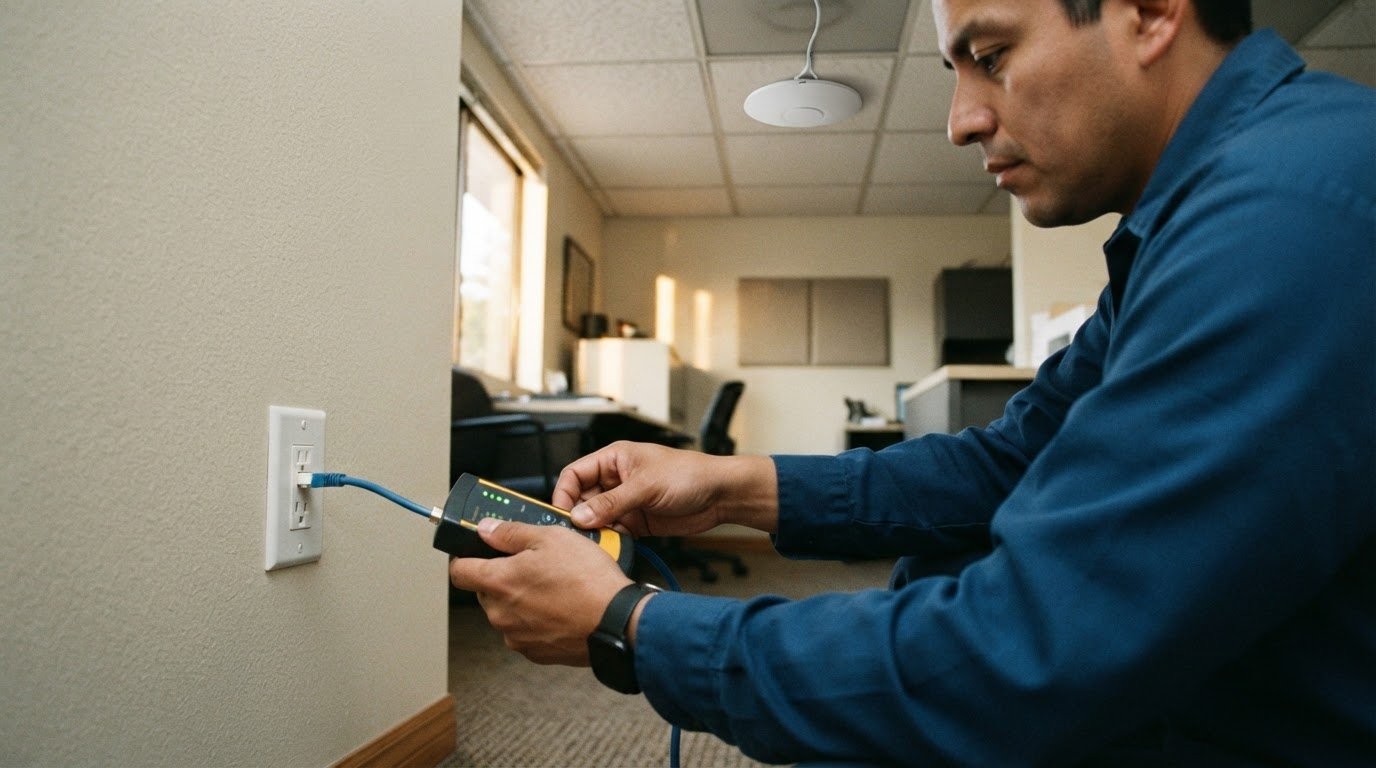
- Try one safe check. Confirm the device has power, inspect accessible cables, and look at connectivity indicators. For a cloud app or online service, check its approved status page if your organization uses one.
These steps keep business IT troubleshooting focused on restoring work without losing track of what caused the disruption. IBM’s overview of IT management connects effective technology operations with helping people work better. That’s a useful lens for choosing checks that support the business, not just the device.
A restart may ease a symptom, but only confirming the cause shows whether the underlying problem is fixed. After each check, note what you did and whether anything changed. That record makes it easier to retrace your steps or hand the issue to support.
What should you avoid while troubleshooting a business device?
Don’t delete files, disable security controls, or keep changing settings without a clear reason. Those actions can increase risk or erase useful clues. Save the error message, note each action and its result, and stop if suspicious activity appears. Don’t interact with unexpected prompts. Report them through your organization’s security process and follow its cybersecurity support guidance for next steps.
For a consistent response, managed IT support connects hands-on troubleshooting with ongoing monitoring and prevention. Uptime Co. provides managed IT services, including help desk support and proactive network monitoring.
When to Escalate Business IT Troubleshooting and Prevent Repeat Issues
Stop testing fixes and escalate when a fault keeps returning, affects multiple people, blocks essential work, or raises questions about account or data security. If you’re unsure whether business information or access may be at risk, report the concern promptly instead of investigating it yourself. A clear handoff gives the support team a useful starting point.
Include the affected users, device or service, when the issue began, the exact error message, and each action already tried with its result. Mention whether the problem went away and returned or is still happening. Keep screenshots if they’re safe to capture, and don’t include sensitive information in an unapproved channel. For specialized systems like office VoIP and business telecommunications, providers like Nexgen Australia advise noting line drop times and call quality issues to help technicians isolate the fault faster. These notes help avoid repeated checks and give support a clear timeline.
How can a support team help stop the same issue from returning?
One incident may look isolated. Repeated reports can reveal a pattern tied to a particular service, device, recent change, or staff process. Support can review details across incidents, investigate underlying system or process causes, and use the findings to guide next steps rather than treating each report as a fresh mystery.
Uptime Co.’s help desk support and proactive 24/7 network monitoring connect issue response with ongoing visibility into business systems. Together, they help the support team spot relevant patterns and maintain continuity, though no process can prevent every disruption. Explore Uptime Co.’s managed IT support to see how structured support can fit your organization. A thoughtful escalation turns a frustrating interruption into useful information for the next response.
Build a More Confident IT Response
Each disruption is a chance to make your next response clearer. Give your team a simple way to report issues, capture what happened, and know when to pause and escalate. For Orange County organizations, these habits can turn business IT troubleshooting from a scramble into a more deliberate part of keeping work moving.
Uptime Co. brings over 30 years of IT administration and technology consulting experience to business technology needs. Explore managed IT support for your business and take the next step toward steadier day-to-day operations.
You don’t need to solve every technical issue alone. Start with a clear report, make safe choices, and build a support plan that helps your team move forward with confidence.
Frequently Asked Questions
Why does my business internet keep disconnecting?
Start by checking whether the drop affects one device or the office connection overall. If one laptop disconnects, note whether it happens on Wi-Fi or a wired connection. If several staff lose access, record which online tools stop responding and when service returns. This gives your Orange County IT support team a useful starting point.
Should I restart a business computer when it stops responding?
A restart can help with a temporary freeze, but it may erase unsaved work. If you can, give the app a moment to respond and capture any visible error before restarting. Check whether the problem is limited to that computer. If unusual access prompts, suspicious activity, or missing files appear, stop testing and report the concern to IT support.
What information should I give IT support about a problem?
Give support a compact incident snapshot. For example: “The accounting app showed an error on the front-desk PC at 9:15, and invoice entry stopped.” Include the exact message or a screenshot that doesn’t expose sensitive information, plus any workaround in use. These details help the team determine whether the issue may involve an account, device, service, or workflow.
Can I troubleshoot a suspected phishing or malware issue myself?
Don’t try to remove or “clean” a suspected threat yourself. Avoid opening links, replying, approving unexpected sign-in requests, or disabling security tools. Leave the message or alert in place, note what you clicked, if anything, and report it through your organization’s established support channel. If coworkers received the same message or another account seems affected, mention that promptly.